
I have a new phone or my Microsoft Authenticator isn't working. How do I set it up?
There is a PDF guide attached at the bottom of this page, but will appear outdated as the app has updated.
Please check that you have Microsoft Authenticator working correctly on your mobile. This will be required to access some systems, new laptops and working remotely.
If you have a replacement new iPhone, Apple may backup and restore your Authenticator App but the account within it will not be working. It will appear setup, but the connection is broken - for the sake of security! You will need to remove this account and re-add it.
Authenticator app is also required to have the ability to use Outlook/Teams and other Microsoft apps on your mobile.
Android Users: You will also be required to install an app called Company Portal if you’d like to use Outlook/Teams etc on your mobile.
To confirm, please click your profile on the top-right in the My Apps page.
Then go to View account
Then select Update Info within Security info
If you can not access this next step;
- As it is authenticating to the app (nothing appearing on your mobile) - then the Authenticator app is 'broken' and you need to setup the app again. You can select the option for 'Alternative ways' to authenticate in the mean time, and get a text message sent to you, assuming your mobile number is the same to when you first ever set this up.
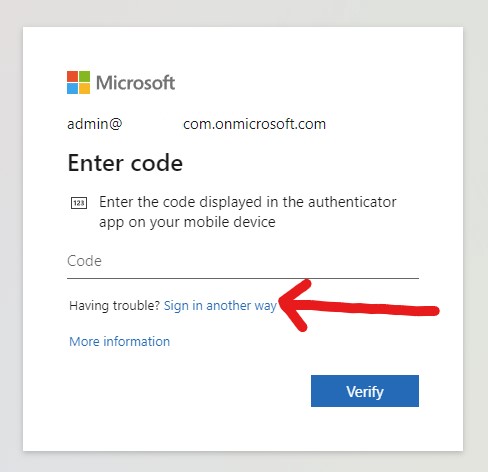
- Seeing a different mobile number to yours (it'll show the last 3 digits) - do let us know so we can reset it for you.
If setup correctly, you will see your mobile model with the Microsoft Authenticator app.
And a Phone with your mobile number for the secondary backup.
Our recommendation for Default sign-in method is the Microsoft Authenticator App – notification (it’s much easier and quicker). But the choice is yours.
If you can confirm the two is correct. That is all. No further action required.
If not setup correctly, then please remove the Menzies account from your Authenticator App on your mobile by clicking the Menzies account, and then pressing the menu/gear/dots icon on the top right, and then remove account (if asked ‘just this app’ or ‘all apps’, then select just this app), and then set it up again by clicking Add sign-in method, and select Authenticator App on your laptop.
On your mobile app, you want to Add account (or click the + icon) and select Work or School account. Then select Scan QR code. On your laptop, follow the wizard to scan QR Code and do a test notification at the end.
Your mobile may ask for camera access so it can scan the QR code, please press Allow.
You may also be asked permission for notification access, this is so you are prompted to confirm access when triggered, please press Allow.
Once all setup within the app. Setup the secondary option of Phone, if not already done so. Enter your mobile number, and you’ll receive a 6 digit code.
Please DO NOT enter your Menzies phone number or Menzies email address as the alternative – as if you need access to Menzies systems, you won’t be able to access the email or phone system, and have an endless locked out loop.
Please add your own mobile number as the secondary backup. So if the app stops working or you have a new phone, you can still receive a text message.
If you’re stuck or require assistance, please contact the Service Desk the normal way.
Comments
0 comments
Article is closed for comments.